NotaeLibrary
Tutorial · Beginners
Slides: from an idea to a deck people can read, watch and keep
A slide work is a deck inside the library: a sequence of still slides with optional narration. Readers can read it, present it full-screen, or watch it like a video with captions — and you can export it as an MP4 that plays anywhere.
You do not need a design tool, a video editor or a hosting account. The deck is written in the same editor as a chapter, and the video is assembled in your browser.
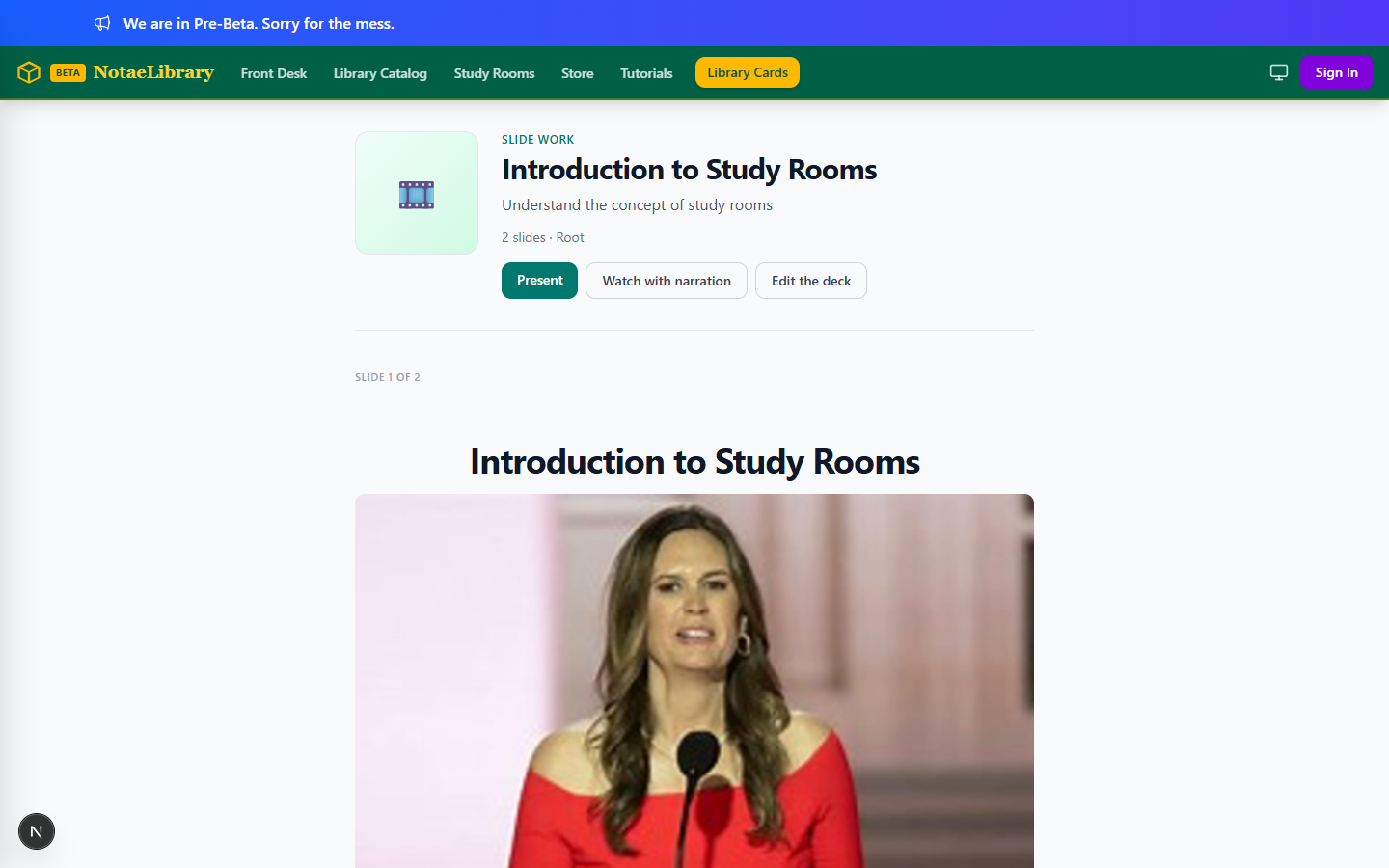
💡Want to see the finished thing first? Read the example deck · present it · watch it. It is two slides long and takes about nine seconds — deliberately small, so you can see the whole shape at once.
🎞️
What a slide work actually is
Each slide has a kind (title, statement, image, quote or recap), an optional title, body written in the normal editor, an optional group label, narration text, and speaker notes that only you see.
The body is the same format as a chapter — so anything you can do in a chapter (headings, quotes, images, lists) works on a slide. There is no second content format to learn, and nothing to export into a separate tool.
Good for
- • A short explainer with one idea per slide
- • A tour of screens — onboarding, walkthroughs
- • A talk you want to give, then publish
- • A narrated brief that should survive as a video
Not for
- • Long-form writing — that is a book
- • Live meetings — those are study rooms
- • Hosting video — the MP4 is downloaded, not stored
🧭
The five ways a deck shows up
One deck, five surfaces. They read from the same slides, so you never maintain two copies.
📖 Read
A normal library page: one slide after another, with the full text. This is the version a search engine and a reader see.
🖥️ Present
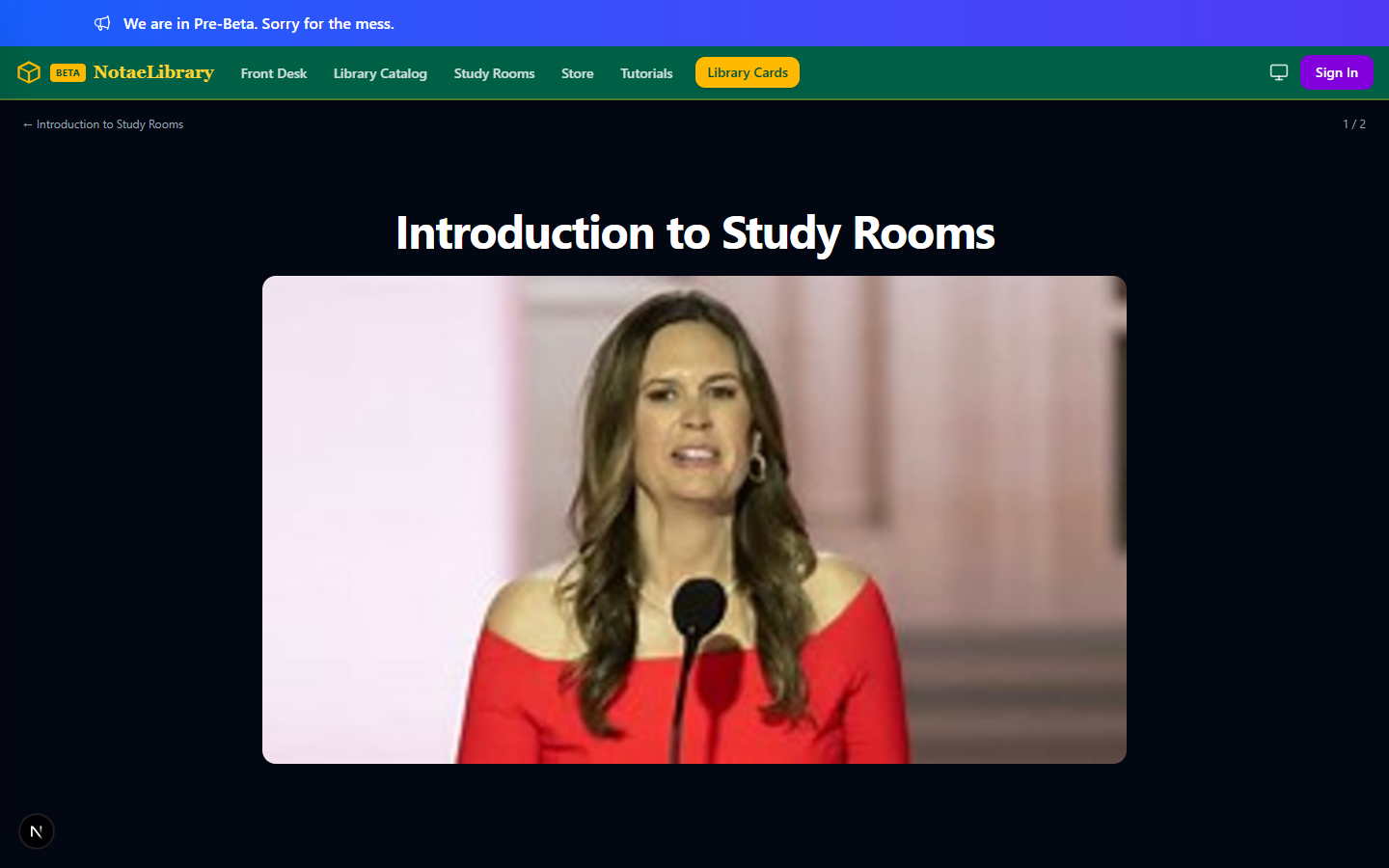
Full-screen, one slide at a time, with keyboard navigation. Speaker notes stay on your side and are never sent to the audience.
🎧 Watch
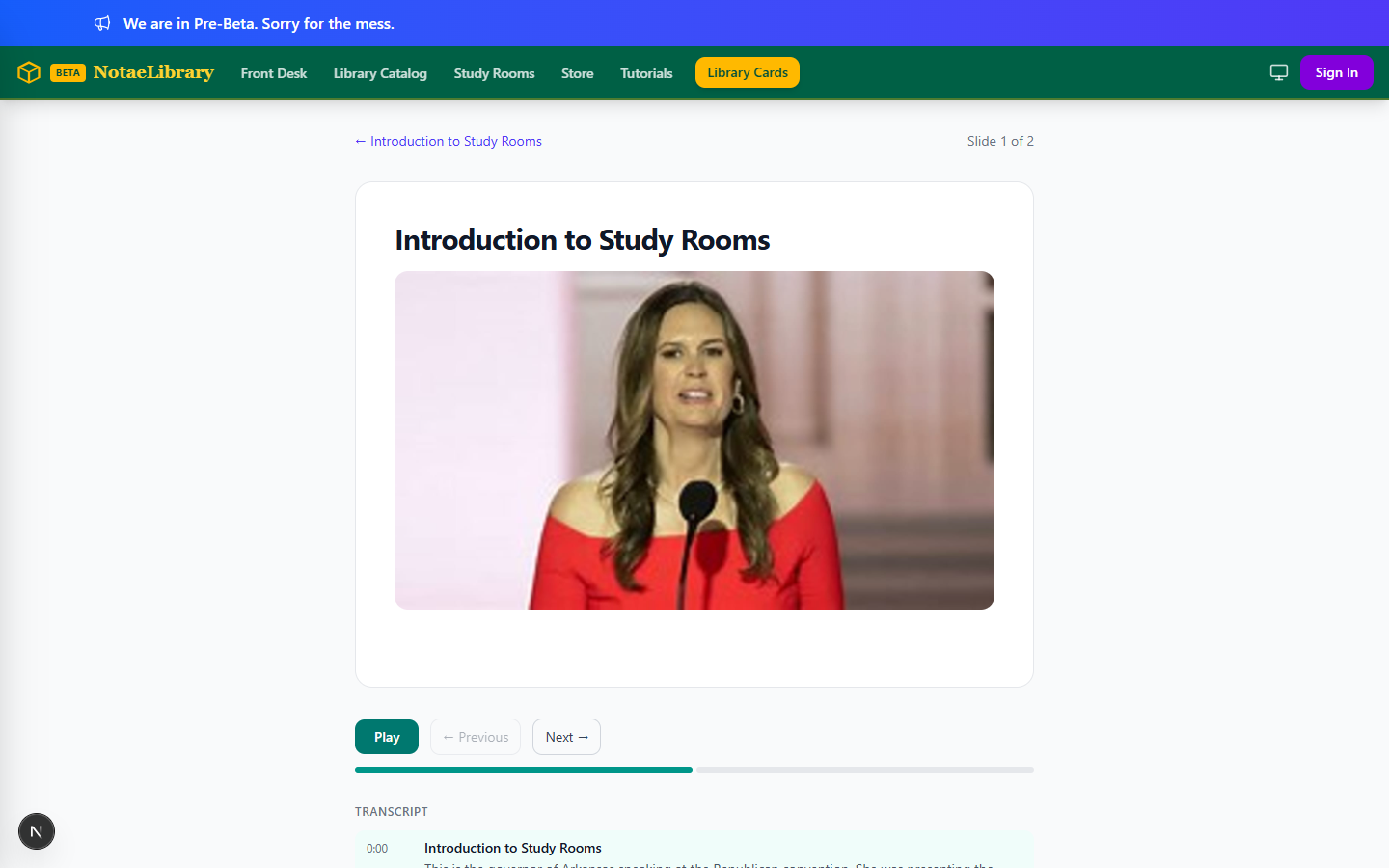
Plays the narration slide by slide, with a progress bar and a transcript underneath. This is the closest thing to a video before you export one.
⬇️ Export
Builds a real MP4 in your browser and downloads it. Nothing is uploaded; there is no hosting and no queue.
A 6×9 PDF, one page per slide, plus an EPUB for e-readers. The handout carries the slides and their images; the narration stays out, because a page is read rather than played.
🔀
Which view do you want?
A flowchart for the one decision people actually get stuck on.
Start here
Do you have a deck yet?
If not, create one first
Add narration text
Optional, but it unlocks Watch and audio in the MP4
Publish it
Visibility = public, or a tutorial import
Then pick the lane you need — they are alternatives, not steps
Reading?
→ /catalog/<slug>
Giving a talk?
→ Present
Watching with sound?
→ Watch
Need a file?
→ Export MP4
Handing out pages?
→ Print PDF
ℹ️The rule of thumb: Read for people who will skim, Present for a room, Watch for people who will not read, Export for anywhere outside NotaeLibrary, Print for a page someone holds.
🛠️
Build your first deck, step by step
1
Create the slide work
Go to Home Room → Workspace → New slide work. You only need a title and a one-line description — no ISBN, price or genre. The deck is created as a draft with one empty slide.
2
Write one idea per slide
Add slides from the deck page. Pick a kind, give it a title, and write the body the way you would write a short chapter. Keep each slide to a single point.
3
Add images where they earn their place
Paste or insert an image into the body. Alt text is required — the editor will refuse an image without it, which is what makes the read view and the exported video accessible.
4
Write the narration
Narration is a separate field: it is what a voice will say, not what the slide shows. Aim for roughly 25–35 spoken words per slide — about 10–15 seconds.
5
Pick a voice and narrate
Choose a narrator voice on the deck page, then narrate each slide. The deck stores the measured length of the audio, so the watch view and the export agree about timing.
6
Save, then publish
Saving is explicit — the editor tells you when there are unsaved changes and warns before you navigate away. When the deck is ready, make it public.
7
Read it, present it, watch it
Use the links on the deck page, or go straight to
/catalog/<your-slug>. Try present mode on the screen you will actually use.8
Export the MP4 when you need a file
From your deck, open Export video and press Export MP4. It renders each slide at 1920×1080, encodes at 5 fps, muxes the narration, and hands you a download. Progress and cancel are both there; cancelling leaves nothing behind.
9
Print it, or put it on an e-reader
Two downloads sit next to the deck: Print PDF (one 6×9 page per slide, images included) and EPUB (reflowable, for a reader). Neither carries the narration — that is what the watch view and the MP4 are for.
⚠️A creator's public deck does not appear in the Tutorials shelf by itself. A staff member imports it there on purpose, which is why the shelf is curated and not another catalog.
📐
What good slides look like
One idea per slide
If a slide needs two titles, it is two slides. The reader controls the pace, and the voice cannot pause to explain a second topic.
25–35 spoken words, not paragraphs
Narration is speech, not prose. Reading a paragraph aloud takes far longer than people expect — a 544-word deck runs about four minutes.
Let the image do the work
A screenshot with a short caption beats a slide that repeats the image in words. Crop to 16:9 where you can; the export stage is 1920×1080.
Write the narration last
Write the slide, look at it, then say what you would say if someone were sitting next to you. That sentence is the narration.
Check it in the view people will use
Present on the projector you will use. Watch on a phone. Read on the smallest screen you still support — 390 px wide is the check we use.
Do not paste a chapter into a deck
Slides are a different rhythm. If the content wants paragraphs, publish it as a book chapter and link to it from a slide.
🧪
A worked example you can copy
The example deck in this tutorial is the smallest real one: two slides, both narrated. Here is exactly what it contains, so you can mirror the shape.
| Slide | What is on it | Narration |
|---|---|---|
| 1 | A title and one full-bleed photo | One sentence, ~6 s |
| 2 | A second photo with a short caption | One sentence, ~3 s |
Exported through the browser it becomes a 464 KB, 9-second MP4 at 1920×1080 with an AAC audio track — small enough to email, which is the point of the format.
🧯
When something does not work
The narrate button is disabled
Either no narrator voice is selected on the deck, or the environment has no speech-provider key. Pick a voice first; if it still refuses, narration is unavailable in that environment rather than broken in your deck.
The exported MP4 is silent
That slide has narration text but no narration audio. Silent slides hold for five seconds by design, so the deck still exports — narrate the slide and export again.
Export will not start in my browser
The export needs the browser's video encoder (WebCodecs). Chrome and Edge have it; Safari has it from version 26, and older Safari does not. If the button cannot run, the page says so instead of spinning — use a Chromium browser for the export.
My deck is public but not on the Tutorials shelf
Expected. The shelf is curated: a staff member imports a deck with a section (“Readers”, “Creators & Authors” or “Teams”). A public deck is discoverable through the catalog instead.
An image is missing in the video
Check that the image has alt text and that it loads in the read view. The exporter re-fetches images rather than copying what is on screen, so an image that only works because of a private session will not survive into the file.
🔗
Where to go next
The shelf groups imported decks by who they are for, so the first thing to check is which section you belong to.
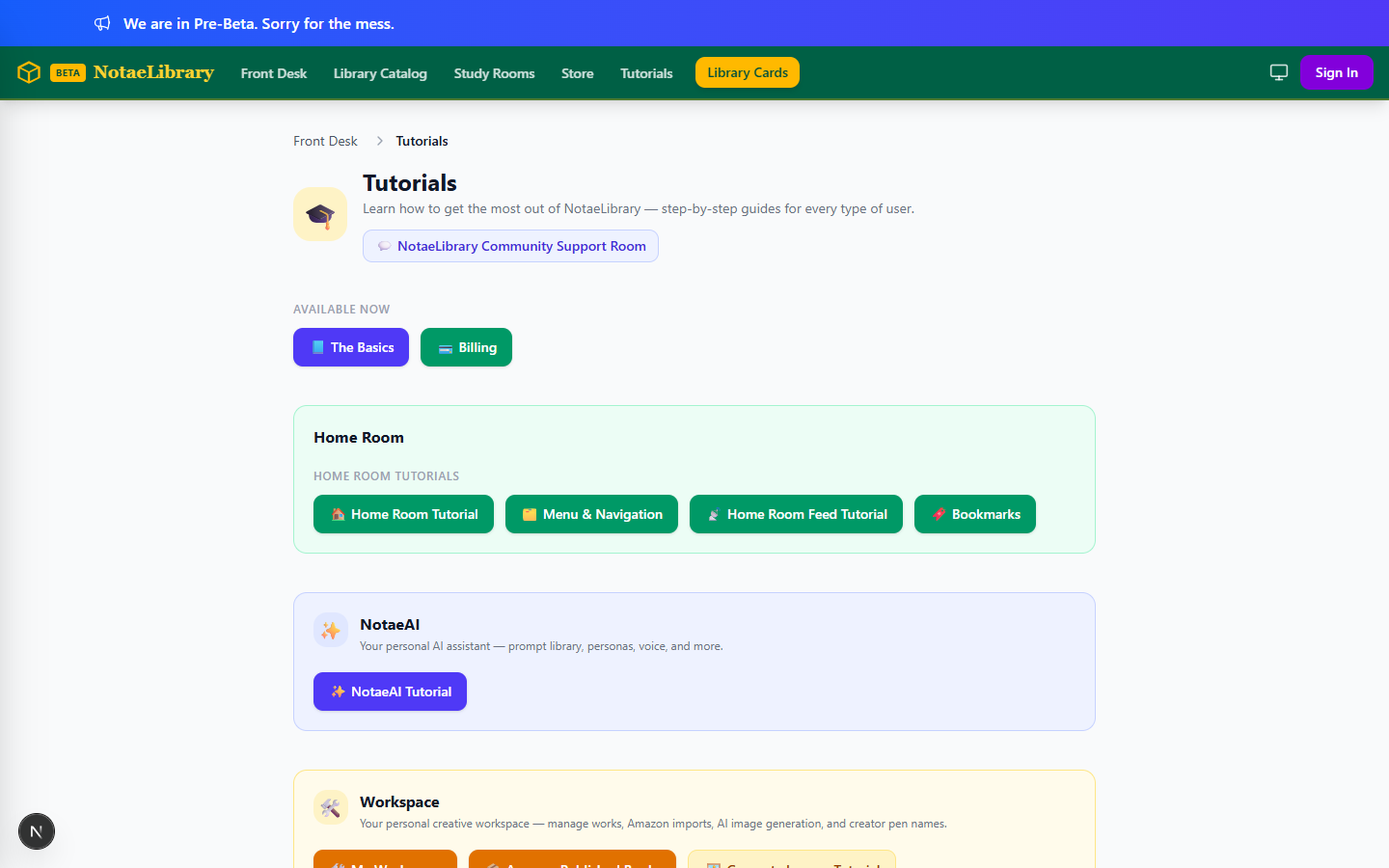
- 📚 The Tutorials shelf — short decks the team maintains.
- ✍️ Publishing a work with Notae Press — the book path, when the content wants chapters instead.
- 👥 Study rooms — where decks, notes and sources live together.
- 🎙️ notaeAI — turning a room's knowledge into answers.
💡Keep the example deck open in a second tab while you build yours. Copying a shape is faster than inventing one, and the whole example is nine seconds of material.