NotaeLibrary
📺 Adding YouTube Links to a Bookshelf
One paste turns a YouTube video or playlist into a shelf item the whole room can watch, filter, and discuss. This guide covers the Videos page, single videos, playlist imports, and what happens after the link lands.
▶️ YouTube🔗 Paste & add📋 Playlists💬 Discuss
On this page
▶️
What a YouTube shelf item is
Adding a video does not copy the video onto the platform. It creates a shelf item that points at YouTube— the video ID, title, channel, thumbnail, and URL — inside the room's Videos section, with its own discussion thread.
That makes the video part of the room's shared shelf: members can find it in the grid, play it inline, open it on YouTube, or talk about it in the thread without hunting for the link again.
🖼️ A card, not a file
The shelf shows a thumbnail, title, channel, who added it, and when. Nothing large is uploaded.
▶️ Plays in place
Click the thumbnail to open an inline player; use Watch to open the video on YouTube.
💬 Its own discussion
Every video has a Discuss link to its shelf detail page, so the room's comments live with the video.
🗂️ Filterable
Videos carry their channel and playlist, so the page can group and filter the room's collection.
ℹ️The video stays on YouTube. If the video is made private or deleted, the card remains but is marked Video unavailable — the room keeps the record of what it had.
🗂️
Where the Videos page lives
Open the room's Bookshelf, then choose the ▶️ Videos card. The card shows how many videos the room has and opens the dedicated page.
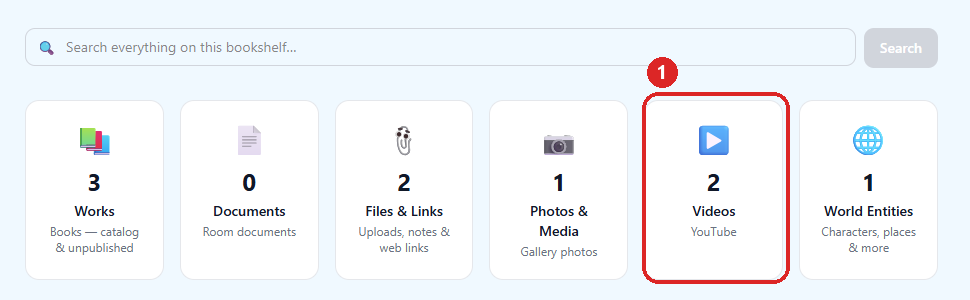
You can also reach the same page from the room's add page: the YouTube Videos card there carries the same paste input and a View all → link. Both routes feed the same shelf.
💡Direct link: the page is at
/study-rooms/<room>/bookshelf/youtube. Bookmark it if your room works through video series regularly.🔐
Who can add a video
You must be a member of the room to add a video. If you are viewing a public room you have not joined, you can see the Videos page, but the add request is refused — join the room first.
Unlike Room Documents, adding a YouTube link does not require the Contributor role. The Videos page is a lightweight shelf tool: any member can paste a link and add it.
👤 Room member
Can view the Videos page, add single videos and playlists, play them, and discuss them.
🛡️ Owner / Moderator
Everything a member can do, plus the transcript tools on a video's detail page.
🔀
Single video or playlist?
The same input handles both. It decides what you pasted by looking at the URL, then either adds one card or offers a playlist preview.
▶️ Single video
One watch, share, shorts, live, or embed link becomes one card immediately. Metadata is fetched automatically.
Best for a one-off talk, lecture, or clip.
📋 Playlist
A playlist URL is checked first, then shown as a preview with its title, channel, and video count. You confirm before anything is imported.
Best for a course, series, or conference track.
⚠️Playlists need YouTube API configuration. Single videos use free oEmbed metadata and always work. Playlist import uses the YouTube Data API; if the platform has no API key configured, the page says playlist import requires API configuration.
➕
Add a single video
The whole flow is one input and one button.
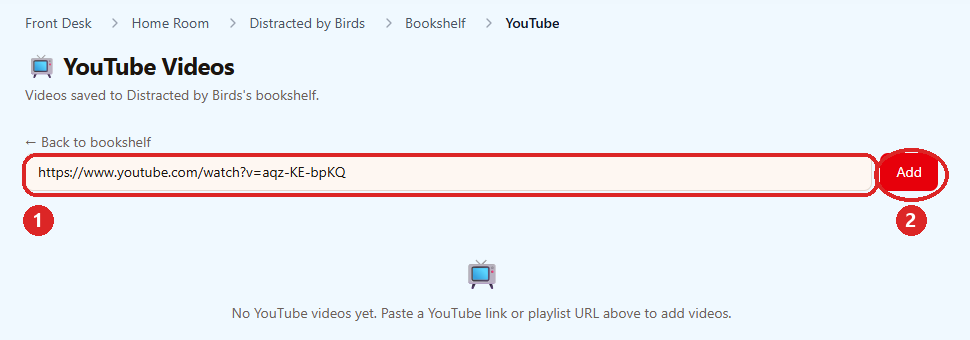
1
Paste the video URL
Copy the address from YouTube and paste it into the field reading Paste a YouTube link or playlist URL…. The Add button enables as soon as there is text.
2
Click Add — or press Enter
The button changes to Detecting… while the video is looked up.
3
Read the result
On success the page shows Video added ✓ with a small preview: thumbnail, title, and channel. The input clears.
4
Find it in the grid
The grid refreshes and the new card appears (most recently added first by default). It shows the thumbnail, title, channel, who added it, and when.
ℹ️Duplicates are handled for you.If the video is already on this room's shelf, the page says Already in bookshelf ✓ instead of adding a second card. Duplicate checking is per room, by video ID.
📋
Add a playlist
A playlist is imported in two steps so a long URL cannot dump fifty videos onto the shelf by accident.
1
Paste the playlist URL
Use the playlist page address, which contains
/playlist?list=.2
Click Add to see the preview
Instead of importing immediately, the page shows a red preview card with the playlist title, its channel, and how many videos it holds. Long playlists show a note that the import is capped at the first 500 videos.
3
Confirm or cancel
Click Import N videos to add them, or Cancel to leave the shelf untouched.
4
Read the import result
The page reports ✅ Imported N videos, plus a count of videos that were already on the shelf and were skipped.
5
Filter by playlist
Imported videos carry the playlist ID and title. A playlist filter appears above the grid so you can narrow the page to that series.
⚠️A re-imported playlist is a known quantity. If the playlist was already imported into this room, the page says so and does not offer the import again. Add new videos from that playlist individually if it grows later.
🔗
Supported link formats
These link shapes are recognised. You can paste them with or without the leading https:// where the URL parser allows it.
| You paste | It adds |
|---|---|
| youtube.com/watch?v=VIDEO_ID | One video |
| youtu.be/VIDEO_ID | One video |
| youtube.com/shorts/VIDEO_ID | One video |
| youtube.com/live/VIDEO_ID | One video |
| youtube.com/embed/VIDEO_ID | One video |
| youtube.com/playlist?list=PLAYLIST_ID | A playlist preview, then an import |
ℹ️A watch link with &list= is still one video. To import the whole playlist, open the playlist itself and copy the address that contains
/playlist?list=.🗄️
What gets saved
The page fills in the details from YouTube, so you never type a title or channel by hand.
🏷️ Video identity
Video ID, full URL, title, channel name, and thumbnail.
👤 Provenance
Who added it and when — shown on the card as “Added by …”.
📋 Playlist details
Playlist ID and title for playlist imports, which power the playlist filter.
✅ Immediate availability
Videos are added as approved shelf items — they do not wait in an approval queue like some documents do.
Single-video metadata comes from YouTube's oEmbed endpoint, which does not report duration. A card may therefore show no duration until that information is filled in another way. Playlist imports also get no duration in this flow.
⚠️Private, deleted, or region-blocked videos can still be added as a record, but the card will show Video unavailable. Check that the link plays in a private window before relying on it for a session.
🎛️
After adding
The grid is built for browsing a room's video shelf.
1
Play it inline
Click a thumbnail to open an embedded player under the card; click again to close it. Videos play from youtube-nocookie.com.
2
Open it on YouTube
▶️ Watch opens the original video in a new tab — useful for the full description, comments, or chapters.
3
Join the discussion
💬 Discussopens the video's shelf detail page, where the room's thread lives.
4
Filter and sort
Once the page has channels or playlists, a filter bar appears: sort by recently added or duration, and narrow by playlist or channel.
5
Load more
The grid shows twenty videos at a time; Load more appends the next page.
💡Empty page? A new room shows “No YouTube videos yet. Paste a YouTube link or playlist URL above to add videos.” That is the page telling you the shelf is ready, not an error.
🧠
Giving the room context
A video card is a pointer, not the video's content. The room can watch and discuss it, but the room's AI does not watch the video for you. If the video matters to the room's knowledge, add the part worth keeping as text.
📜 Write a Notae summary
Add a Notae to the shelf with the key argument, quotes, or timestamps. That text is what members and the room's AI can search.
📄 Pair it with a Room Document
A Room Document can embed the video alongside your notes, questions, and reading — the lesson and its source in one page.
On a video's detail page, owners and moderators also have Paste Transcript: copy the transcript (or a YouTube “Ask” summary) and paste it in. That creates a Transcript: … Notae linked to the video, so the text sits on the shelf next to its source.
💡Pair video with question. When you add a video for a session, add the question the room should answer in its discussion. A shelf of unwatched links is storage; a shelf with questions is knowledge.
💡
Best practices
💡Series → playlist. One-offs → single video. Playlists give you the playlist filter; a single link is faster for a clip.
💡Check the card before the meeting. A private, deleted, or region-locked video shows as unavailable — better to know before everyone clicks play.
💡Use the channel filter. A room studying one lecturer or one band becomes much easier to browse once several videos share a channel.
💡Add the text you will quote. If a specific passage matters, write it into a Notae or a Room Document. The card is the link; the text is the knowledge.
⚠️Don't re-add a playlist to get its new videos. The page treats an imported playlist as already imported. Add the new videos individually.
❓
FAQ
▶Why is the Add button greyed out?
It enables only when the input has text. Paste a YouTube link first, then click Add or press Enter.
▶It says the URL is not a YouTube URL.
Use one of the recognised shapes: a watch link, youtu.be link, shorts, live, embed, or a playlist URL. A channel URL or a search results URL is not a video.
▶It says Already in bookshelf.
That video ID is already on this room's shelf. Open the existing card rather than adding a duplicate.
▶Playlist import says API configuration is required.
Playlist import uses the YouTube Data API, which needs a platform-side API key. Single videos use free oEmbed metadata and still work.
▶Why is there no duration on my video?
Single-video metadata from oEmbed does not include duration, and playlist imports in this flow do not set it either. The card simply omits it.
▶The video is marked unavailable.
The link may point at a private, deleted, or region-blocked video. The shelf keeps the record, but the player cannot load it.
▶Can I add the same video to another room?
Yes. Shelves are room-scoped and duplicate checks are per room, so add the link in the other room's Videos page as well.
▶Does the room's AI watch the video?
No. The card stores metadata and a link. Add a Notae summary, pair the video with a Room Document, or have an owner or moderator paste a transcript so the text is on the shelf.
🚀
Try it on a real bookshelf
Open the example room's Videos page and add a link, or go deeper on the shelf around it.
📺→📚→📄→✍️→🎓→
Open the example Videos page
Paste a YouTube link in Distracted by Birds and watch the card appear.
Bookshelf Knowledge
How videos, documents, works, and Notaes fit into one searchable room knowledge base.
Adding Documents to a Bookshelf
Create a living document and embed the video alongside your notes.
Room Documents deep dive
Embed video, audio, images, and PDFs into a collaborative document.
All tutorials
Browse the full tutorial library for more guides.
Put a video on the shelf
Paste the link, confirm the card, then give the room the question.