NotaeLibrary
📂 Adding From Media Library
From Media Library shelves an image, audio clip, video, PDF, or document you already have in your personal Media library. This guide covers the picker, selection, notes, and exactly what the bookshelf entry copies.
📂 Media Library🖼️ Images · 🎵 Audio · 🎬 Video🧠 Indexed🛡️ Owner / Moderator
On this page
📂
What From Media Library is
Your Media library holds media you already own on the platform — generated images, uploaded artwork, audio clips, video, PDFs, and documents. From Media Library lets you shelve one of those items in a Study Room without uploading it again.
The room gets a bookshelf entry that copies the item's metadata — title, description, alt text, AI prompt, tags, file name, size, and type — and points at the same file. The original media item stays in your library.
🗂️ Existing media
No new upload; pick from what is already in your Media library.
🏷️ Metadata becomes shelf text
Description, alt text, prompt, and tags are what the room and its AI can read.
🔗 Shared file
The shelf entry references the same file; the original remains in your library.
💬 Discussion included
Add notes and, optionally, a dedicated discussion channel.
ℹ️Your library, not the room's. The picker only shows media you own. Another member cannot browse your personal media through this page.
🧭
Media Library, upload, or photos?
| Source | Use it for |
|---|---|
| 📂 From Media Library | Media you already have — generated images, existing artwork, audio, video, PDFs. |
| 📤 Upload a File | A new file from your device that is not in your media library yet. |
| 📷 Upload Photos | Photos going into the room's gallery, uploaded in the background. |
| 🔗 Web Link / Article | A page or URL, not a media file. |
💡Already in your library? Use Media Library. If the file only exists on your device, upload it; if it is a personal media item, shelve it here.
👑
Who can add from it
Only the room owner and moderators can add from their media library. The card is hidden from contributors and members, and the page redirects them away.
👑 Owner
Can pick from their own Media library and add it.
🛡️ Moderator
Same access. The media must be theirs, not another member's.
✍️ Contributor / 👤 Member
Cannot add from a media library. They can read the shelf entry.
🧰
Before you start
🖼️ The media item exists
It must already be in your Media library — generated, uploaded, or previously saved. The picker has no upload control.
🏷️ Good description and tags
They become the shelf entry's title and indexed description. Fix them before adding if they are vague.
📝 A reason
Notes on the shelf entry are optional but are the room's context for why the item matters.
🗂️ One item
Each submission shelves one media item; repeat for more.
ℹ️Types supported: images, audio, video, PDF, documents, and other files from your Media library.
🧭
Where to find it
On the room's Add to Bookshelf page, the Files & media section holds the 📂 From Media Library card. It opens the dedicated picker page.
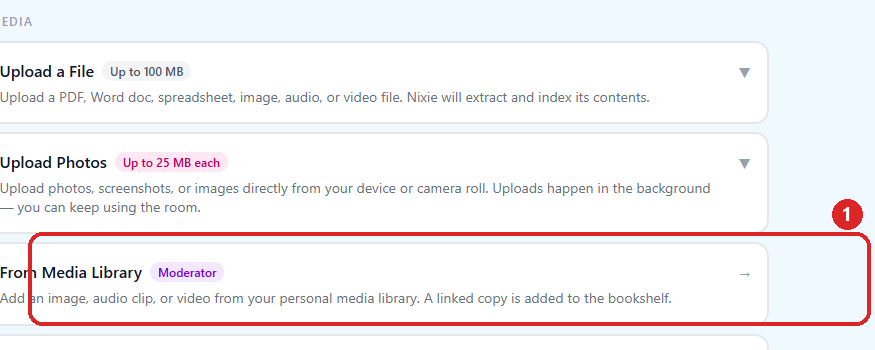
The page lives at /study-rooms/<room>/bookshelf/add/medialibrary.
🖼️
The picker
The page opens your personal media picker: a type filter, a search box, and a grid of your media.
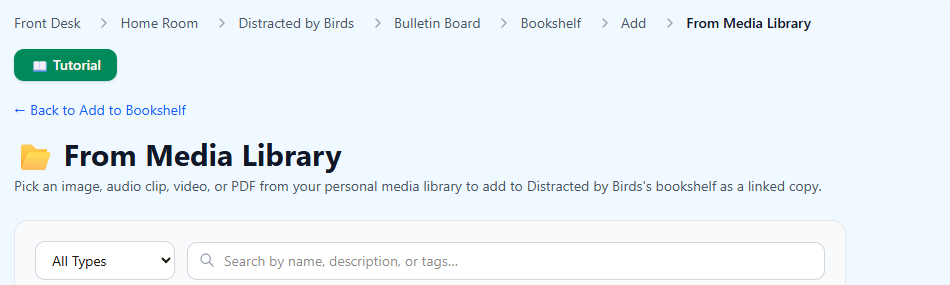
🎛️ Type filter
Limit the grid to images, audio, video, PDFs, documents, or other.
🔎 Search
Matches filename, description, alt text, prompt, and tags.
🖼️ Grid and selection
One card per item; selecting it gives a blue ring and a check mark.
📄 Selection panel
Once selected, the item preview, Notes, discussion toggle, and Add button appear.
💡If the grid is empty, your Media library has no items of that type — or no media yet. Generate or upload media first, then come back.
➕
Step by step
1
Open the room's Add to Bookshelf page
Bookshelf → Add Knowledge to Bookshelf.
2
Open From Media Library
In Files & media, click 📂 From Media Library.
3
Filter or search
Choose a type, or type a few words from the name, description, or tag.
4
Select the item
Click a card. It gets a blue ring and a check mark, and the selection panel appears below the grid.
5
Add notes (optional)
Say why the room is adding it, or what to look at.
6
Choose the discussion channel
On by default. Turn it off for a quiet reference item.
7
Add to Bookshelf
Click Add to Bookshelf. A toast confirms, and you are returned to the room's bookshelf.
💡Cancel goes back to the add page without adding anything. The ← Back to Add to Bookshelf link does the same.
🗄️
What gets saved
The bookshelf gets its own entry. It copies the media's metadata and references the same file URL; it does not duplicate the binary.
🏷️ Title
The media's description, alt text, or filename — whichever is available.
📝 Description
Built from the description, alt text, AI prompt, and tags.
📎 File details
File URL, name, size, and MIME type are copied onto the shelf entry.
🧠 Indexed text
Title, description, notes, and tags are indexed for the room's assistant.
ℹ️Metadata is copied; the file is shared. If the original media item is later deleted, the shelf entry keeps its metadata, but the file it points at may no longer exist.
🔁
After adding
1
Find it under Files & Links
The entry appears on the bookshelf with the room's files and links. Open it to view and discuss.
2
Use the discussion
The channel you left checked gives the item a dedicated place in chat.
3
Ask the room's assistant
The indexed title, description, notes, and tags let the AI answer around the item — though it does not see the image or video content itself.
4
Correct the metadata if needed
Owners and moderators can edit the shelf card's title and description; the original media record is unchanged.
🔐
Who can do what
| Action | Member | Contributor | Moderator / Owner |
|---|---|---|---|
| Read a media shelf entry | ✅ | ✅ | ✅ |
| Open From Media Library | — | — | ✅ |
| Browse their own media | — | — | ✅ |
| Add a media item | — | — | ✅ |
| Create the discussion channel | — | — | ✅ |
✅ always · — never. Media Library adds are steward-only, and the picker only ever shows the caller's own media.
💡
Best practices
💡Fix the description before adding.The media's description becomes the shelf title, and it is the strongest retrieval signal the item has.
💡Alt text and tags are worth the minute. They are copied into the shelf description and indexed with the entry.
💡Use notes for the room's reason.“Use this map for the north estuary question” beats an unlabelled image.
💡Don't double-add.If the media is already on the shelf, the picker has no duplicate guard; check Files & Links first.
⚠️Keep the original media. The shelf entry shares the file. Deleting the source from your Media library can leave the shelf card pointing at a file that no longer exists.
❓
FAQ
▶The picker says my media library is empty.
You have no Media items of that type yet. Generate or upload media in your workspace, then return to this page.
▶I can't find a media item I know I have.
Check the type filter and clear the search. The picker searches filename, description, alt text, prompt, and tags — not the file's visual content.
▶Why can't a contributor add from their media library?
Media Library adds are limited to owners and moderators. Contributors and members can read the resulting shelf entry.
▶Does this upload the file again?
No. The bookshelf entry copies the metadata and points at the existing file URL; it does not create a second upload.
▶Does the AI see the image or video?
No. It reads the title, description, notes, and tags that are indexed. Write down what matters in the description or notes.
▶Can I change the title after adding?
Owners and moderators can edit the shelf card's title and description. The original Media record is not changed.
▶Can I add several media items at once?
No. The picker adds one selected item per submission; repeat for the next.
▶What types can I add?
Images, audio, video, PDFs, documents, and other media already in your personal Media library.
🚀
Try it on a real shelf
Open the example room's From Media Library page, or continue with the other file sources.
📂→📚→📄→🔗→🎓→
Open From Media Library
Browse your media and shelve an item in Distracted by Birds.
Bookshelf Knowledge
How files, links, documents, and feeds become one room knowledge base.
Adding Documents to a Bookshelf
Create an editable Room Document from a file or from scratch.
Adding Web Links & Articles
Save a web page instead of a media file.
All tutorials
Browse the full tutorial library for more guides.
Shelve media you already have
Find it, frame it with notes, and add it to the room.